
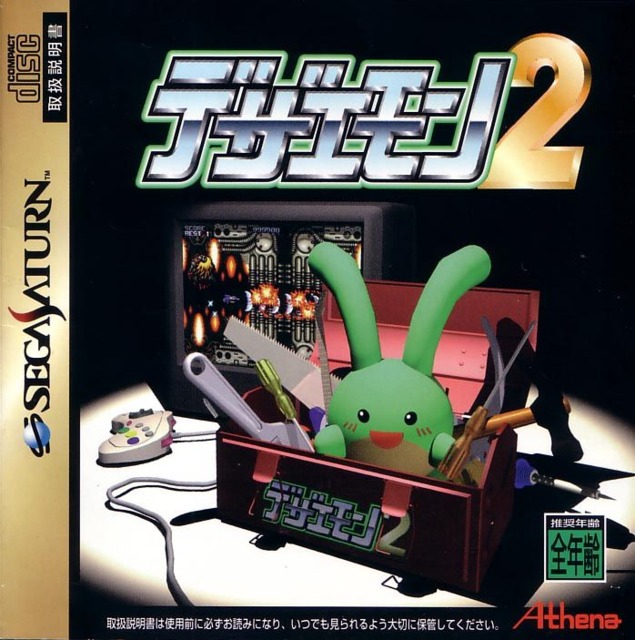
Dezaemon is a Japanese STG construction kit that sorta has an outsized legacy in the genre. If you are playing a Japanese developed doujin shooter, odds are high it is either highly influenced by Dezaemon games, or might even just be a port of one. For example, 2024’s Devil Blade Reboot is a remake of Devil Blade, a Dezaemon game that the remake helpfully includes. Getting to play Dezaemon 2 games on actual hardware is, as many places have pointed out, kinda a pain in the butt. Thankfully, the MiSTer is here to save the day.
Step 0
What You Need to Get Started
Here’s what you are going to want to have ready to go to do this:
- A MiSTer with the latest Saturn core (just run
update_allto grab this) - Zaparoo installed on the MiSTer, either using
update_allor manually (details here) - The Saturn BIOS, either the Japanese or Universal one, installed in
root/games/saturnon your MiSTer - A copy of Dezaemon 2 as a
.chdfile (details on converting to .chd can be found here) - The Dez 2 Saves Dezaemon 2 Save Game Manager for MiSTer (downloaded from archive.org)
We here at Hinge Problems can’t specifically tell you where to get most of those those files, but if you are using a MiSTer already, you know where to get those files.
Step 1
Installing Zaparoo
If you don’t already have Zaparoo installed, there are two ways to do it, using update_all or manually.
Using update_all to Install Zaparaoo
Zaparoo Core is available in update_all by enabling the MiSTer Extensions repository in the settings/tools menu.
Manually Installing Zaparoo
To manually install Zaparoo, download the Zaparoo Core for MiSTer from the Zaparoo Downloads page and copy the zaparoo.sh file to the /scripts folder on your MiSTer’s SD card.
After Installing Zaparoo
Once you have it installed, run zaparoo from the MiSTer Scripts menu. If it runs properly, a prompt will offer to enable Zaparoo as a startup service, then the service will be started in the background.
Note: Rudie needed to run the script a few times for this to work, so don’t get worried if the same thing happens to you
After the initial setup is complete, a status display will be shown. It’s OK to exit this screen, the service will continue to run in the background.
Step 2
Configuring the .chd File
You will need a copy of Dezaemon 2 for the Saturn in .chd format. If you only have it in .cue format, the Archive included above includes the CUE2CHD converter to help you with that.
Converting .cue/.bin to .chd
To convert a .cue/.bin version of the game to .chd:
- Place the
.cueand the.binfile into one folder. - Drag the folder onto the
cue2chd.batfile included with the Archive file linked above.
Your .cue/.bin file should now be converted into a .chd file, and ready to go.
Installing the .chd File
To get the .chd file ready to use:
- Rename the Dezaemon 2 .
chdfile asLaunch.chd. - Create a folder in your Saturn games folder called
Dezaemon. The address for this folder should beroot/games/Saturn/Dezaemon. - Copy the
Launch.chdfile into theDezaemonfolder you just created. - Open your Saturn core on the MiSTer and set the
Cartridgeoption toBACKUP. Save the settings and exit the core.
Step 3
Installing the Dezaemon 2 Save Game Manager
If you haven’t already, now is the time to download the Dezaemon 2 Save Game Manager from the Internet Archive. Unzip that file and do the following:
- Copy all of the contents in the MiSTer folder of that dowload onto your MiSTer.
- This should copy all the files into the correct folders on the MiSTer, but double check that it did. The files should be located on your MiSTer in the same location as they are in the original download.
That’s it. You should be ready to go.
Step 4
Running a Dezaemon 2 Game
Once you have everything installed, here’s how you actually run a game.
- In the
scriptsmenu, run theDezaemon 2 Save Game Managerscript. - Select the desired
usergamefrom the list and press the confirm button. The selected game should flash at the bottom of the screen. - Select
Launchto start the game. Dezaemon 2 should load at this point. - In Dezaemon 2, move to the right and select Load.
- Select the
カートリッジRAMoption. - Select
ALLand then selectOK. A green box should appear that says:読み込むと、作成中の全データが消されてしまいます。よろしいですか?(Translation: If you load this, all data currently being created will be erased. Is that okay?) - Select
はい(Translation: Yes). A new box should appear that says:データを読み込んでいます。 (Translation: Loading Data ) - Select
OK. - Select
Return. - On the Title screen, select
User.
Your game should be running now. It’s just that easy (which is to say, based on the above guide, it’s not easy at all).
 Hinge Problems
Leave a comment